Enterprise Manager console is the basic console to perform the health checkups, check ports and so on for Oracle Application Server. One of the easiest way to access the EM console (if you dont know the exact URL or port number) is by accessing the HTTP Server home page and clicking the Login to IAS Admin Console link. If the EM console is not started then you will see Page cannot be displayed error.
Now, you can check the status of the EM console using the command ./emctl status iasconsole (Execute this command in the location $ORACLE_HOME/bin) - This is for LINUX system
If it is not started, use this command to do so ./emctl start iasconsole and the output will be shown as below.
[oracle@hostname bin]$ ./emctl start iasconsole
TZ set to Asia/Calcutta
Oracle Enterprise Manager 10g Application Server Control Release 10.1.4.3.0
Copyright (c) 1996, 2006 Oracle Corporation. All rights reserved.
http:// hostname:7018/emd/console/aboutApplication
Starting Oracle Enterprise Manager 10g Application Server Control ...... started successfully.
[oracle@hostname bin]$
Wednesday, October 20, 2010


Integration of E-Business Suite 12.x with Oracle Single Sign-on Server 10.1.4.3 in real time
Not many people talk about real time aspects of any integrations and the configurations involved. However, I would like to bring a small point which is vital for integrating E-Business Suite 12.x with Oracle Single Sign-On Server 10.1.4.3.
Lets assume E-Business suite is running on 2 nodes and OSSO server on 2 other nodes (nodes imply different machines or different instances in same machine) in production mode. In real time mode, you will be accessing the OSSO server console/application using a virtual hostname (instead of individual hostname) and same is the case for E-Business suite. For integrating OSSO with E-Business Suite, we will run a perl script txkrun.pl which registers E-Business Suite as partner application in OSSO server. The question is whether to run the script in both nodes of E-Business suite or just single node. The answer is single node as the script will pick up values from profile options that are in the database (A person called Atul helped me in this concept).
The runtime inputs to be provided for the perl script txkrun.perl is shown below:
$FND_TOP/bin/txkrun.pl -script=SetSSOReg
Lets assume E-Business suite is running on 2 nodes and OSSO server on 2 other nodes (nodes imply different machines or different instances in same machine) in production mode. In real time mode, you will be accessing the OSSO server console/application using a virtual hostname (instead of individual hostname) and same is the case for E-Business suite. For integrating OSSO with E-Business Suite, we will run a perl script txkrun.pl which registers E-Business Suite as partner application in OSSO server. The question is whether to run the script in both nodes of E-Business suite or just single node. The answer is single node as the script will pick up values from profile options that are in the database (A person called Atul helped me in this concept).
The runtime inputs to be provided for the perl script txkrun.perl is shown below:
$FND_TOP/bin/txkrun.pl -script=SetSSOReg
Enter the host name where Oracle iAS Infrastructure database is installed ? Virtual Hostname of OSSO Server (not to get confused as it specifies Infrastructure database hostname)
Enter the LDAP Port on Oracle Internet Directory server ? 389 (default port is 389, if you have customized the ports, then specify it)
Enter SSL LDAP Port on Oracle Internet Directory server ? 636 (default port is SSL, if you have customized the ports, then specify it)
Enter the Oracle Internet Directory Administrator (orcladmin) Bind password ? (OID administrator password)
Enter the instance password that you would like to register this application instance with ? (mostly this password is same as OID admin password)
Enter Oracle E-Business apps database user password ? (EBS apps user password)
Enter the LDAP Port on Oracle Internet Directory server ? 389 (default port is 389, if you have customized the ports, then specify it)
Enter SSL LDAP Port on Oracle Internet Directory server ? 636 (default port is SSL, if you have customized the ports, then specify it)
Enter the Oracle Internet Directory Administrator (orcladmin) Bind password ? (OID administrator password)
Enter the instance password that you would like to register this application instance with ? (mostly this password is same as OID admin password)
Enter Oracle E-Business apps database user password ? (EBS apps user password)
Sunday, October 10, 2010
Configuring Oracle Access Manager 11g
This post covers the Configuration part of Oracle Access Manager 11g. To know about installing and configuring the Oracle Identity and Access Management 11.1.1.3, check the previous post .
Configuring Oracle Access Manager 11g contains the steps for creating a WebLogic domain which has OAM Admin Server, EM consoles etc., deployed in WebLogic server.
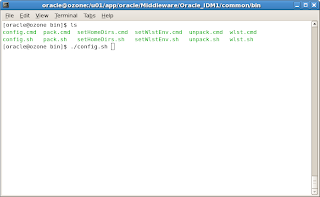
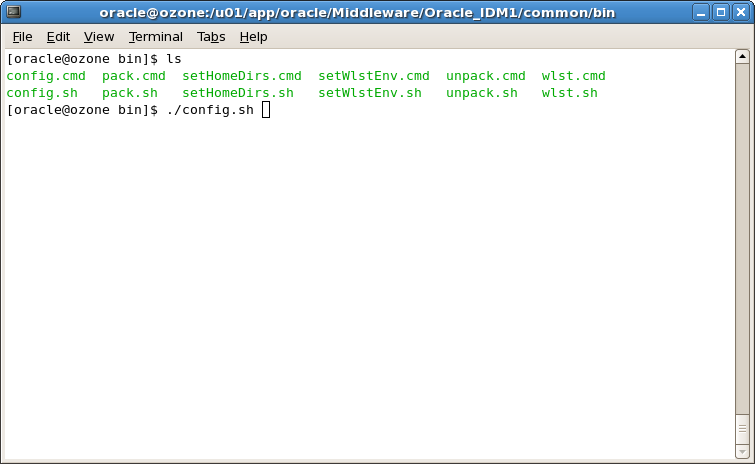
First step is to run the config.sh present in the location/common/bin.
 We are just configuring the OAM alone, hence we have selected Oracle Access Manager with Database Policy Store.A database policy store offers more security measures that can be layered based on the storage, thereby ensuring higher resiliency to corruption and better high availability. We have also selected Oracle Enterprise Manager here.
 Specify a Domain name.
 Specify the weblogic user password.

 Specify the Service Name of the database, database hostname, database port. Select the OAM Infrastructure component for configuring the JDBC schema.
 Test the JDBC connection.


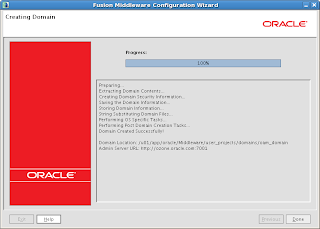
Access the WebLogic administration console, http://host:port/console
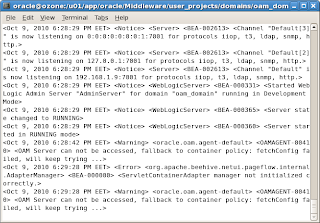
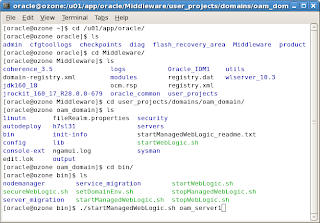
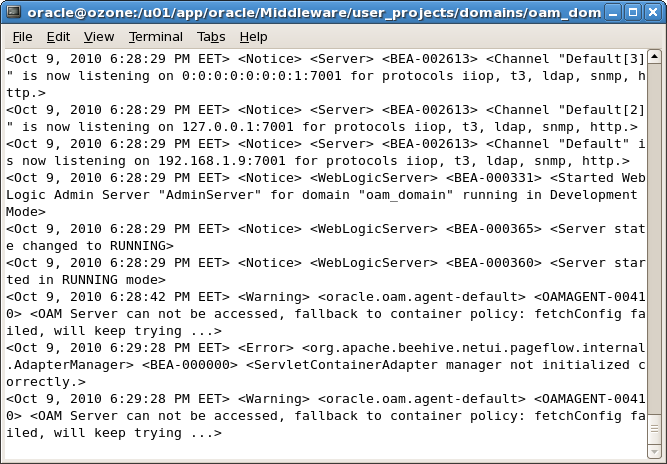
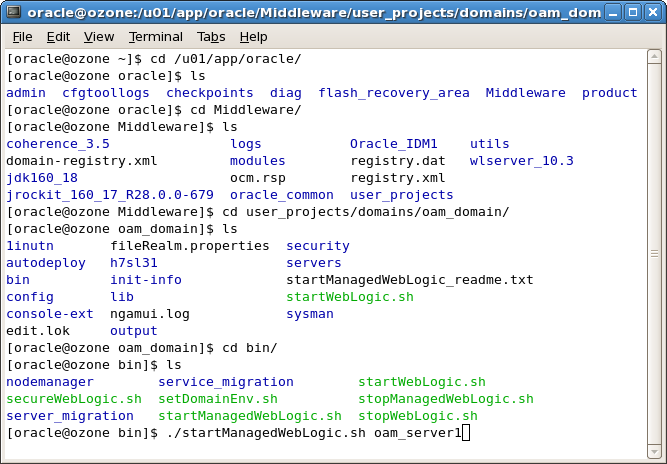
 Start the OAM Access Server, run startManagedWebLogic.sh with parameter as oam_server1 as shown below.
Access the OAM console using http://host:port/oamconsole. Login as weblogic user.
 This completes the OAM Configuration and now you can play with this product.


Configuring Oracle Access Manager 11g contains the steps for creating a WebLogic domain which has OAM Admin Server, EM consoles etc., deployed in WebLogic server.
First step is to run the config.sh present in the location

Note:
When you select the Oracle Access Manager with Database Policy Store - 11.1.1.3.0 [Oracle_IDM2] option, the Oracle JRF - 11.1.1.0 [oracle_common] option is also selected, by default.


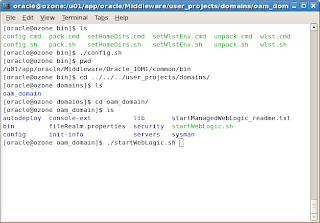
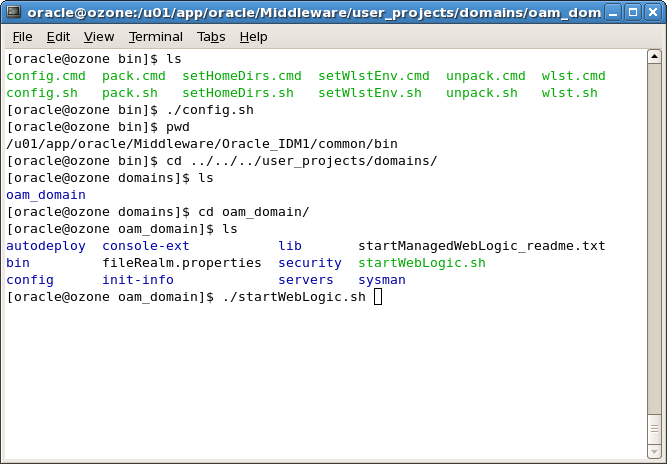
Start the WebLogic admin server using startWebLogic.sh present in the location Oracle_Home/user_projects/domains/oam_domain
Access the WebLogic administration console, http://host:port/console

Access the OAM console using http://host:port/oamconsole. Login as weblogic user.


Saturday, October 9, 2010



Installing Oracle Identity and Access Management Suite 11.1.1.3.0
I have covered the installation part of Oracle Identity and Access Management suite 11.1.1.3.0 with screenshots.
The pre-requisites before installing this product are:
If you want to install only Oracle Identity Manager Design Console or Remote Manager, you do not need to install Oracle WebLogic Server or create a Middleware Home directory on the machine where Design Console or Remote Manager is being configured.
Now, let us proceed with installation screens directly.


Let us see the folders that gets created in Oracle Home location.
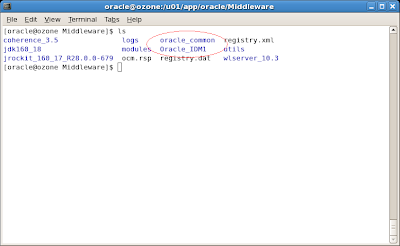
A folder called Oracle_IDM1 gets created and this is the IDM home.
Next step is to configure the Oracle Access Manager by creating WebLogic domain which will be covered in a seperate post.
The pre-requisites before installing this product are:
- WebLogic Server 10.3.3 should have been installed.
- Oracle Database above 11.1.7.0+ or 11.2.x should have been installed
- Created schema for Oracle Access Manager using RCU.
If you want to install only Oracle Identity Manager Design Console or Remote Manager, you do not need to install Oracle WebLogic Server or create a Middleware Home directory on the machine where Design Console or Remote Manager is being configured.
Now, let us proceed with installation screens directly.


Let us see the folders that gets created in Oracle Home location.
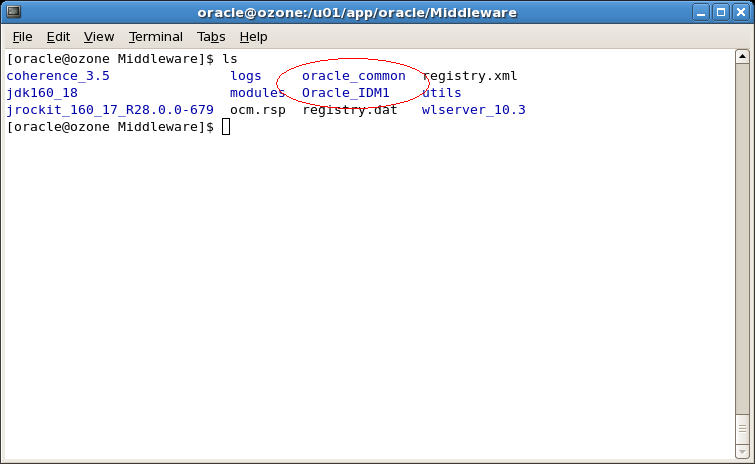
A folder called Oracle_IDM1 gets created and this is the IDM home.
Next step is to configure the Oracle Access Manager by creating WebLogic domain which will be covered in a seperate post.
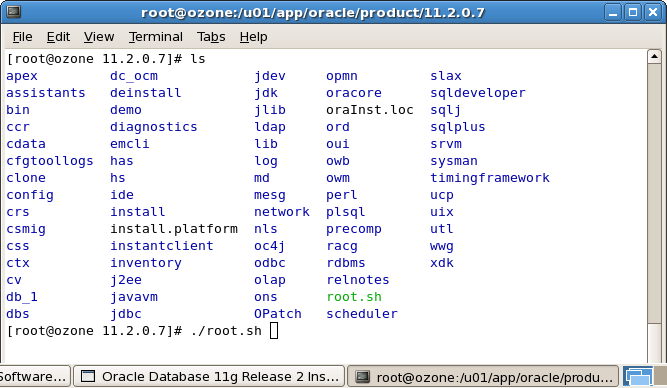
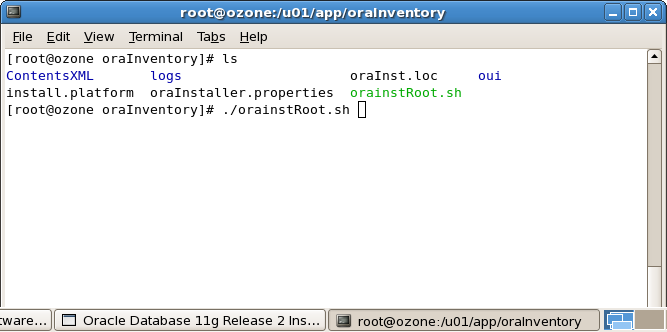
Installing Oracle Database 11g R2 (11.2.0.1.0)
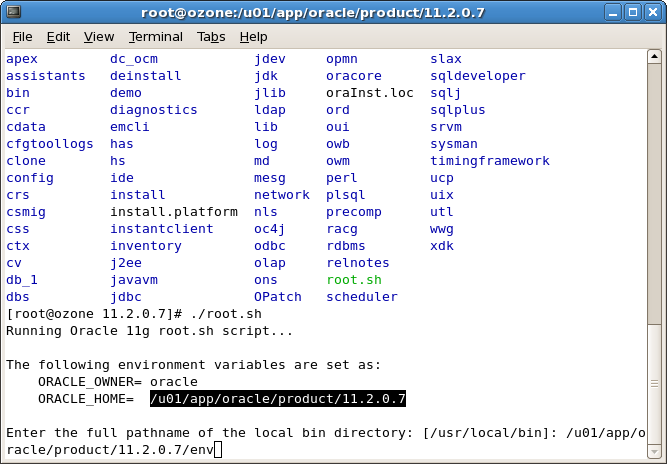
First time ever, I have installed an Oracle Database and have given few important screen shots in this post.
You can download the database 11.2.0.1.0 software here.


You can download the database 11.2.0.1.0 software here.





Tuesday, August 31, 2010
Oracle Access Manager integration with BPEL worklist
This is a new task that I accomplished recently with lots of ups and downs. The objective is to achieve Single Sign-on or authentication of BPEL worklist using Oracle Access Manager.
The various component versions are:
1. OAM 10.1.4.3
2. BPEL Process Manager 10.1.3.4
3. Oracle Single Sign-on 10.1.4.3
There are 2 ways to integrate OAM with BPEL.
1. Direct integration using Access SDK
2. Using Oracle Single Sign-on
I followed the second approach as our environment is AIX and Access SDK is not availble for AIX servers. However, I would suggest first approach as OSSO is not a strategic product for single sign-on from 11g onwards and no further development will be carried upon OSSO.
Integration Process:
I am writing the procedue for integration using second approach.
The integration is divided into 2 bits. OSSO integration with BPEL and OSSO integration with OAM.
I have posted here in detail about the BPEL-OSSO integration. OSSO integration with OAM is avaiable in oracle by example here.
The hiccups and troubleshooting tips I used in this integration process are written here 1, 2.
The various component versions are:
1. OAM 10.1.4.3
2. BPEL Process Manager 10.1.3.4
3. Oracle Single Sign-on 10.1.4.3
There are 2 ways to integrate OAM with BPEL.
1. Direct integration using Access SDK
2. Using Oracle Single Sign-on
I followed the second approach as our environment is AIX and Access SDK is not availble for AIX servers. However, I would suggest first approach as OSSO is not a strategic product for single sign-on from 11g onwards and no further development will be carried upon OSSO.
Integration Process:
I am writing the procedue for integration using second approach.
The integration is divided into 2 bits. OSSO integration with BPEL and OSSO integration with OAM.
I have posted here in detail about the BPEL-OSSO integration. OSSO integration with OAM is avaiable in oracle by example here.
The hiccups and troubleshooting tips I used in this integration process are written here 1, 2.
Subscribe to:
Posts (Atom)